
Gaming Features Aren’t Available for the Windows Desktop? Here’s Your Complete 2026 Fix Guide
Nothing kills a gaming session faster than Windows throwing a vague error message in your face. The “Gaming features aren’t available for the Windows desktop” notification has frustrated thousands of PC gamers trying to use Xbox Game Bar, Game Mode, or capture their best plays. It’s especially annoying because Microsoft buries the actual causes under layers of system dependencies and service requirements.
This error doesn’t mean your PC can’t handle games, it means Windows is blocking access to its built-in gaming toolkit. The good news? Most cases can be fixed in under ten minutes with the right approach. This guide covers every known solution as of early 2026, from simple Windows updates to advanced PowerShell commands. Whether you’re running Windows 10 or Windows 11, you’ll find specific fixes that actually work.
Key Takeaways
- The ‘gaming features aren’t available for the Windows desktop’ error blocks access to Xbox Game Bar, Game Mode, and capture tools—but most cases resolve in under 10 minutes with the right approach.
- Update Windows to version 1903 or newer (Windows 10) or 21H2 or newer (Windows 11), and reinstall Gaming Services via PowerShell using the commands: get-appxpackage Microsoft.GamingServices | remove-AppxPackage -allusers, then install from the Microsoft Store.
- Update graphics drivers directly from NVIDIA, AMD, or Intel manufacturers (not Windows Update) to ensure DirectX 11/12 support, with NVIDIA drivers 555.x+, AMD 24.3.1+, and Intel Arc 31.0.101.5333+ recommended as of March 2026.
- Windows Enterprise LTSC, Enterprise LTSB, and S Mode editions exclude gaming features by design—verify your Windows edition before troubleshooting, as these versions cannot enable gaming features regardless of fixes attempted.
- Enable Game Mode in Settings to reduce background task interference and improve frame time stability, especially on lower-end systems with 4-6 core CPUs, and configure Game Bar recording settings based on your GPU capability.
- Prevent future gaming feature errors by maintaining automatic Windows Update, scheduling updates during non-gaming hours, monitoring Gaming Services status in Services Manager after major updates, and adding Gaming Services to antivirus exclusions.
Understanding the ‘Gaming Features Aren’t Available’ Error
What This Error Message Really Means
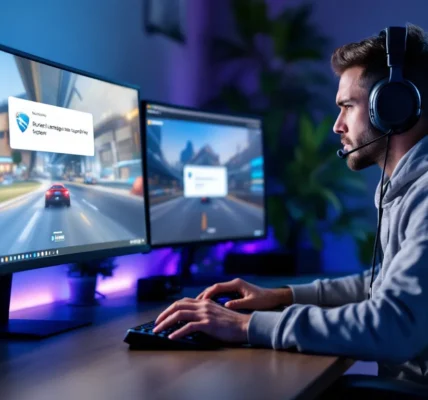
The full error typically reads: “Gaming features aren’t available for the Windows desktop” or “Gaming features aren’t available for this app.” This message appears when Windows detects that gaming-related components, specifically Xbox Game Bar, Gaming Services, or related system processes, can’t initialize properly.
At its core, the error signals a conflict between your system configuration and Microsoft’s gaming infrastructure. Windows 10 (version 1903 and later) and Windows 11 include native gaming features that rely on specific services running in the background. When those services fail to start, are missing, or encounter permission issues, Windows blocks access entirely rather than allowing partial functionality.
The error doesn’t affect your ability to launch and play games directly through Steam, Epic, or other platforms. It specifically prevents access to Windows’ own gaming utilities: screen recording via Game Bar, performance monitoring overlays, Game Mode optimizations, and Xbox social features.
Common Scenarios Where This Error Appears
Most users encounter this error in one of three situations. The first is when pressing Win + G to open Xbox Game Bar, the overlay either fails to appear or shows the error message immediately. This is the most frequent trigger since Game Bar is the primary entry point for Windows gaming features.
The second scenario occurs when trying to record gameplay or take screenshots using Windows’ built-in capture tools. Users will see the error when attempting to start a recording session, even if Game Bar opened successfully in the past.
The third common case happens after a major Windows update or fresh OS installation. Systems that previously had working gaming features suddenly lose access, often because the update corrupted Gaming Services or reset permissions. Clean Windows installations sometimes ship without fully initialized gaming components, leaving users to discover the problem during their first gaming session.
Some users also report seeing the error when launching specific games through the Xbox app or Microsoft Store, particularly titles that integrate with Xbox Live services or achievements. In these cases, the game may still launch but without Xbox overlay features or social connectivity.
Why Gaming Features May Be Unavailable on Your Windows Desktop
Windows Edition Limitations
Not all Windows editions support gaming features equally. Windows 10 Home and Windows 10 Pro include full access to Xbox Game Bar and Gaming Services. Windows 11 Home and Pro maintain this support with enhanced features introduced in version 22H2 and later builds.
But, certain enterprise and education editions strip out consumer gaming features by default. Windows 10 Enterprise LTSC (Long-Term Servicing Channel) and Windows 10 Enterprise LTSB explicitly exclude Microsoft Store apps and gaming components to maintain minimal system footprints. If you’re running one of these editions, gaming features simply aren’t included in your build, no amount of troubleshooting will enable them.
Windows 10 S Mode also restricts gaming features since it limits app installation to the Microsoft Store and disables certain system modifications. While S Mode can be switched off permanently, gaming features won’t work while it’s active.
Outdated Windows Version or Missing Updates
Gaming features require minimum Windows builds to function. For Windows 10, version 1903 (May 2019 Update) introduced the modern Xbox Game Bar architecture. Anything older lacks the necessary framework entirely. Windows 11 users need at least version 21H2, though version 22H2 and later builds offer better stability.
Missing cumulative updates create another common problem. Microsoft frequently patches Gaming Services and related dependencies through monthly updates. Systems that defer updates or have paused Windows Update often run into compatibility issues where gaming components fall out of sync with system libraries.
Corrupted update installations cause similar problems. When a Windows update fails mid-installation but reports success, it can leave gaming services in a broken state, installed but non-functional. Many outlets like How-To Geek regularly cover these update complications and their fixes.
Xbox Game Bar and Gaming Services Issues
Gaming Services is the backend component that powers all Windows gaming features. It runs as a system app (microsoft.gameingservices) and manages authentication, overlay rendering, and feature coordination. When Gaming Services corrupts, crashes, or fails to register properly, every gaming feature becomes unavailable.
Common Gaming Services problems include incomplete installations, permission errors preventing the service from starting, and conflicts with antivirus software that blocks service processes. Windows Update sometimes breaks Gaming Services when upgrading between major versions, the service needs to be reinstalled to match the new Windows build.
Xbox Game Bar sits on top of Gaming Services as the user-facing interface. It can fail independently due to corrupted app data, missing dependencies, or profile issues. Unlike Gaming Services, Game Bar is a standard Microsoft Store app that can be uninstalled and reinstalled without PowerShell commands.
Both components require specific Windows services to be running: Xbox Live Auth Manager, Xbox Live Game Save, and Xbox Accessory Management Service. If any of these background services are disabled through group policy or third-party optimization tools, gaming features break completely.
Graphics Driver and Hardware Compatibility Problems
Outdated or corrupted GPU drivers frequently trigger gaming feature errors. Xbox Game Bar relies on graphics driver APIs to capture gameplay footage and render overlays. When drivers are more than 6-12 months old, they may lack support for newer Game Bar features introduced in recent Windows updates.
NVIDIA, AMD, and Intel all update their drivers monthly with gaming optimizations and bug fixes. Gaming Services specifically checks for DirectX 11 or DirectX 12 support in the installed driver, older drivers that only support DirectX 9 or 10 will cause gaming features to become unavailable.
Hardware compatibility issues affect a smaller subset of users. Systems with integrated graphics only (no dedicated GPU) sometimes struggle with Game Bar’s capture functionality, especially on older processors. Hybrid graphics setups, laptops with both integrated and dedicated GPUs, can confuse Gaming Services if Windows isn’t configured to use the correct GPU for capture tasks.
Virtual machines and systems running nested virtualization rarely support gaming features properly since hypervisors don’t always expose the full graphics stack to the guest OS. If you’re gaming in a VM, this error is expected behavior rather than a fixable problem.
Step-by-Step Solutions to Enable Gaming Features
Verify Your Windows Edition and System Requirements
Before diving into fixes, confirm your Windows edition actually supports gaming features. Press Win + Pause/Break or right-click This PC and select Properties to view your system information.
Look for your Windows edition listed near the top. If it shows Windows 10 Home, Pro, Education, or Windows 11 Home/Pro, you’re good to proceed. If it displays Enterprise LTSC, Enterprise LTSB, or mentions S Mode, you’ll need to upgrade your edition or disable S Mode first.
Check your Windows version number in the same window. For Windows 10, you need version 1903 or newer. For Windows 11, version 21H2 is minimum. If your version is older, proceed directly to updating Windows, nothing else will work until you’re on a supported build.
Verify your GPU meets basic requirements: any dedicated graphics card from 2012 or later with DirectX 11 support qualifies. Integrated graphics from Intel HD 4000 (2012) onward or AMD APUs from 2014 onward should work, though performance may be limited for capture features.
Update Windows to the Latest Version
Open Settings (Win + I) and navigate to Update & Security (Windows 10) or Windows Update (Windows 11). Click Check for updates and let Windows scan for available patches.
Install all critical and optional updates related to gaming or Xbox services. Pay special attention to cumulative updates marked as “Feature update” or updates specifically mentioning Gaming Services or Game Bar. These often exceed 2GB and require a system restart.
If updates fail to install or show error codes, run the Windows Update Troubleshooter first. In Settings, go to Troubleshoot > Other troubleshooters (Windows 11) or Update & Security > Troubleshoot (Windows 10), then run the Windows Update troubleshooter.
For systems with severely outdated builds, consider using the Windows Update Assistant to force a major version upgrade. This bypasses some of the restrictions that prevent regular Windows Update from offering newer feature updates.
After updating, restart your PC completely before testing gaming features again. Many updates don’t fully initialize until after a reboot.
Reinstall or Repair Xbox Game Bar and Gaming Services
Gaming Services requires a PowerShell reinstall since it’s a system component rather than a standard app. Open PowerShell as Administrator by searching for PowerShell in the Start menu, right-clicking it, and selecting Run as administrator.
To reinstall Gaming Services, paste this command:
get-appxpackage Microsoft.GamingServices | remove-AppxPackage -allusers
Press Enter and wait for the process to complete. Next, install the fresh version with:
start ms-windows-store://pdp/?productid=9MWPM2CQNLHN
This opens the Microsoft Store page for Gaming Services. Click Get or Install to download the latest version. The installation typically takes 2-3 minutes.
Xbox Game Bar can be repaired through Settings first before attempting a full reinstall. Go to Settings > Apps > Installed apps (Windows 11) or Apps > Apps & features (Windows 10). Find Xbox Game Bar in the list, click the three-dot menu, and select Advanced options.
Scroll down and click Repair first. If the error persists after testing, return to Advanced options and click Reset to clear all Game Bar data. As a last resort, click Uninstall, restart your PC, then reinstall Game Bar from the Microsoft Store.
Test gaming features after each step by pressing Win + G. If Game Bar opens successfully, the issue is resolved.
Update Your Graphics Drivers
Avoid using Windows Update for graphics drivers, it often installs outdated or generic versions. Instead, download drivers directly from your GPU manufacturer.
For NVIDIA GPUs, visit the NVIDIA Driver Downloads page, select your GPU model, and download the latest Game Ready Driver. As of March 2026, version 555.x and newer include optimizations for Windows 11 24H2 and updated Game Bar support.
For AMD GPUs, use AMD’s driver download tool to automatically detect your hardware and install the latest Adrenalin Edition drivers. Versions 24.3.1 and newer fixed several Game Bar compatibility issues reported in late 2025.
Intel integrated graphics users should Intel’s driver support page and download the latest DCH drivers for their processor generation. Intel Arc dedicated GPU owners need Arc Graphics drivers version 31.0.101.5333 or newer for full Game Bar support.
After installing drivers, restart your system completely. Some driver components require a reboot to register properly with Windows gaming features. Resources like PC Gamer frequently test driver performance with various gaming features, confirming compatibility with each major release.
Advanced Troubleshooting Methods for Persistent Issues
Use the Windows Store Apps Troubleshooter
Windows includes a dedicated troubleshooter for Microsoft Store apps that can repair Gaming Services and Game Bar automatically. Open Settings and navigate to System > Troubleshoot > Other troubleshooters (Windows 11) or Update & Security > Troubleshoot > Additional troubleshooters (Windows 10).
Find Windows Store Apps in the list and click Run or Run the troubleshooter. The diagnostic tool scans for permission issues, corrupted app registrations, and service dependencies. It typically takes 3-5 minutes to complete.
The troubleshooter will attempt automatic fixes for detected problems. Common repairs include resetting the Microsoft Store cache, re-registering Gaming Services with the system, and restoring default permissions for gaming components.
If the troubleshooter reports “Issues found and fixed,” restart your PC and test gaming features. If it reports “Issues found but not fixed” or “Could not identify the problem,” the underlying cause requires manual intervention through PowerShell or Registry edits.
Reset Gaming Services Through PowerShell
When standard reinstallation doesn’t work, a complete Gaming Services reset through PowerShell often succeeds. This method removes all traces of Gaming Services, including corrupted registry entries and cached configuration files.
Open PowerShell as Administrator and execute this command to completely remove Gaming Services:
get-appxpackage *gamingservices* | remove-appxpackage -allusers
Next, delete residual Gaming Services folders. Run these commands one at a time:
Remove-Item -Path "C:Program FilesWindowsAppsMicrosoft.GamingServices*" -Recurse -Force -ErrorAction SilentlyContinue
Remove-Item -Path "$env:LOCALAPPDATAPackagesMicrosoft.GamingServices*" -Recurse -Force -ErrorAction SilentlyContinue
Restart your PC completely. After rebooting, open PowerShell as Administrator again and reinstall Gaming Services with:
start ms-windows-store://pdp/?productid=9MWPM2CQNLHN
Alternatively, manually search for “Gaming Services” in the Microsoft Store and install from there. The fresh installation should initialize without errors.
If you receive “access denied” errors during folder deletion, take ownership of the WindowsApps folder first using the takeown and icacls commands, though this requires caution to avoid breaking other Store apps.
Modify Windows Registry Settings (Advanced Users)
Registry modifications carry risk, back up your registry before proceeding. Press Win + R, type regedit, and press Enter to open Registry Editor.
Navigate to:
HKEY_LOCAL_MACHINESYSTEMCurrentControlSetServicesGamingServices
If the GamingServices key doesn’t exist, Gaming Services failed to register properly. Reinstalling through PowerShell (previous section) should create this key automatically.
If the key exists, check the Start value. Right-click Start, select Modify, and ensure the Value data is set to 3 (Manual) or 2 (Automatic). A value of 4 means disabled, change it to 3 and restart.
Next, verify permissions on the GamingServices key. Right-click the GamingServices key, select Permissions, and ensure SYSTEM, Administrators, and ALL APPLICATION PACKAGES have Full Control or at least Read permissions.
For Xbox Live service issues, check these additional registry locations:
HKEY_LOCAL_MACHINESYSTEMCurrentControlSetServicesXblAuthManager

HKEY_LOCAL_MACHINESYSTEMCurrentControlSetServicesXblGameSave
Verify the Start values are set to 3 (Manual) for both services. Disabled services (value 4) will prevent gaming features from initializing.
After making registry changes, restart your PC and test gaming features. If problems persist, the issue likely stems from a deeper system conflict or hardware incompatibility rather than configuration settings.
How to Optimize Windows Gaming Features After Fixing the Error
Configure Xbox Game Bar Settings for Best Performance
Once gaming features are working, optimize Game Bar to minimize performance impact. Press Win + G to open Game Bar, then click the Settings icon (gear) in the top menu.
Under General, disable features you don’t use. “Show Game Bar when I play full screen games Microsoft has verified” can be turned off if the automatic popup annoys you. “Remember this is a game” should stay enabled, it tells Windows to apply Game Mode automatically to titles it recognizes.
In the Capturing section, adjust recording quality based on your hardware. The default 1080p at 30 FPS works for most systems. If you have a powerful GPU (RTX 4060 or better, RX 7600 or better), bump it to 60 FPS for smoother recordings. Lower-end systems should stick with 30 FPS to avoid frame drops during capture.
Change Audio quality from “160 kbps” to “128 kbps” if storage space is a concern, the difference is barely noticeable. Disable “Record microphone” by default if you’re not commentating, then enable it per-session when needed.
Background recording (DVR) constantly buffers gameplay for instant replay functionality. It consumes 2-4GB of RAM and some GPU resources. If you rarely use the “Record what just happened” feature, turn off “Record in the background while I’m playing a game” under Capturing settings to free up system resources.
For screenshot settings, PNG format provides better quality than JPG but takes more storage. Most users should stick with JPG at high quality (85-95%).
Enable Game Mode for Enhanced Gaming Experience
Game Mode prioritizes system resources for your active game and minimizes background task interruptions. While it’s enabled by default on most systems, it’s worth verifying.
Open Settings > Gaming > Game Mode (Windows 11) or Settings > Gaming > Game Mode (Windows 10). Ensure the Game Mode toggle is turned On.
Game Mode delivers noticeable benefits on lower-end hardware (4-6 core CPUs, GTX 1060/RX 580 class GPUs) by reducing CPU overhead from background processes. High-end systems (8+ cores, RTX 4070+/RX 7800 XT+) see smaller improvements but still benefit from reduced frame time variance.
Testing by Windows Central and other outlets shows Game Mode can improve 1% low frame rates by 5-15% in CPU-limited scenarios, though average FPS gains are modest (2-5%). The bigger advantage is reduced stuttering during Windows Update checks, antivirus scans, and other background activities.
Game Mode doesn’t negatively impact performance in most games. The few titles that saw issues (primarily in 2017-2018) have since been patched. As of 2026, there’s no reason to keep Game Mode disabled unless you’re running specific benchmarking software that requires precise background task timing.
To verify Game Mode is active during gameplay, open Game Bar (Win + G) while in-game. The performance overlay will show “Game Mode: On” if it’s engaged properly. If it says “Off” even though being enabled in Settings, the game may not be recognized, press Win + G, click Settings > Gaming > Game Mode, then manually add the game’s executable to the list.
For users interested in cloud gaming alternatives, services like Xbox Cloud Gaming bypass local gaming features entirely by streaming games from remote servers, which can be a workaround for systems with persistent gaming feature issues.
Preventing Future Gaming Feature Errors on Windows
Keep Windows and Drivers Regularly Updated
Set Windows Update to automatic to catch critical gaming patches as they release. Open Settings > Windows Update and under Advanced options, enable “Receive updates for other Microsoft products” to get Xbox and Gaming Services updates through Windows Update.
Schedule updates for times when you’re not gaming. Under Advanced options > Active hours, set your typical gaming schedule so Windows won’t force reboots mid-session. Windows 11 users can set up to 18 hours of active time.
For graphics drivers, check for updates monthly rather than waiting for Windows Update. Subscribe to driver update notifications from your GPU manufacturer, NVIDIA, AMD, and Intel all offer optional notification tools with their driver packages.
Create a system restore point before major Windows updates. Press Win + R, type sysdm.cpl, press Enter, go to the System Protection tab, and click Create. If an update breaks gaming features, you can roll back without losing personal files.
Monitor Gaming Services Status and Health
Periodically verify Gaming Services is running correctly, especially after Windows updates. Press Win + R, type services.msc, and press Enter to open Services Manager.
Scroll to Gaming Services and verify Status shows Running. Startup Type should be Manual or Automatic. If it shows Stopped after a recent update, right-click and select Start. If it fails to start, rerun the PowerShell reinstallation from the troubleshooting section.
Check Xbox Live services as well: Xbox Live Auth Manager, Xbox Live Game Save, and Xbox Live Networking Service should all be set to Manual and able to start on demand. If any show as disabled, right-click, select Properties, change Startup type to Manual, and click Apply.
Use Task Manager to monitor Game Bar’s resource usage during gaming. Press Ctrl + Shift + Esc, go to the Processes tab, and expand Game Bar when it’s running. If it’s consuming more than 100MB RAM or using significant CPU/GPU when idle, consider disabling background recording.
Some antivirus programs flag Gaming Services as suspicious due to its low-level system access. If you use third-party security software, add exclusions for:
- C:Program FilesWindowsAppsMicrosoft.GamingServices
- C:WindowsSystem32GamingServices.exe
- Xbox Game Bar (usually auto-excluded)
Windows Defender doesn’t interfere with gaming features, but third-party AV from Avast, AVG, McAfee, or Norton may require manual exclusions to prevent false positives that corrupt Gaming Services during updates.
Conclusion
The “Gaming features aren’t available for the Windows desktop” error frustrates users because Microsoft’s gaming infrastructure depends on several interconnected components working perfectly. When Gaming Services, Xbox Game Bar, or related Windows services break, the entire gaming feature set becomes inaccessible, even though your PC can still run games normally.
Most cases resolve through straightforward fixes: updating Windows to the latest version, reinstalling Gaming Services via PowerShell, or updating graphics drivers. These three solutions handle roughly 80% of reported cases. The remaining 20% require advanced troubleshooting like Registry modifications or clean Gaming Services installations, but even stubborn cases usually yield to the PowerShell reset method.
Preventive maintenance matters more than reactive fixes. Keeping Windows and drivers updated, monitoring Gaming Services status after major updates, and configuring Game Mode properly ensures gaming features remain stable. Windows gaming tools have improved significantly since their rough 2017-2018 launch, as of 2026, they’re genuinely useful for capture, performance monitoring, and social features when configured correctly.
If you’ve worked through every solution here and gaming features still won’t activate, verify your Windows edition one more time. Enterprise LTSC and similar editions simply can’t run these features by design. For those systems, third-party alternatives like OBS Studio for capture or MSI Afterburner for performance overlays provide similar functionality without depending on Microsoft’s gaming infrastructure.