Rocket League ‘This Feature Is Temporarily Disabled’ Error: Complete Troubleshooting Guide for 2026
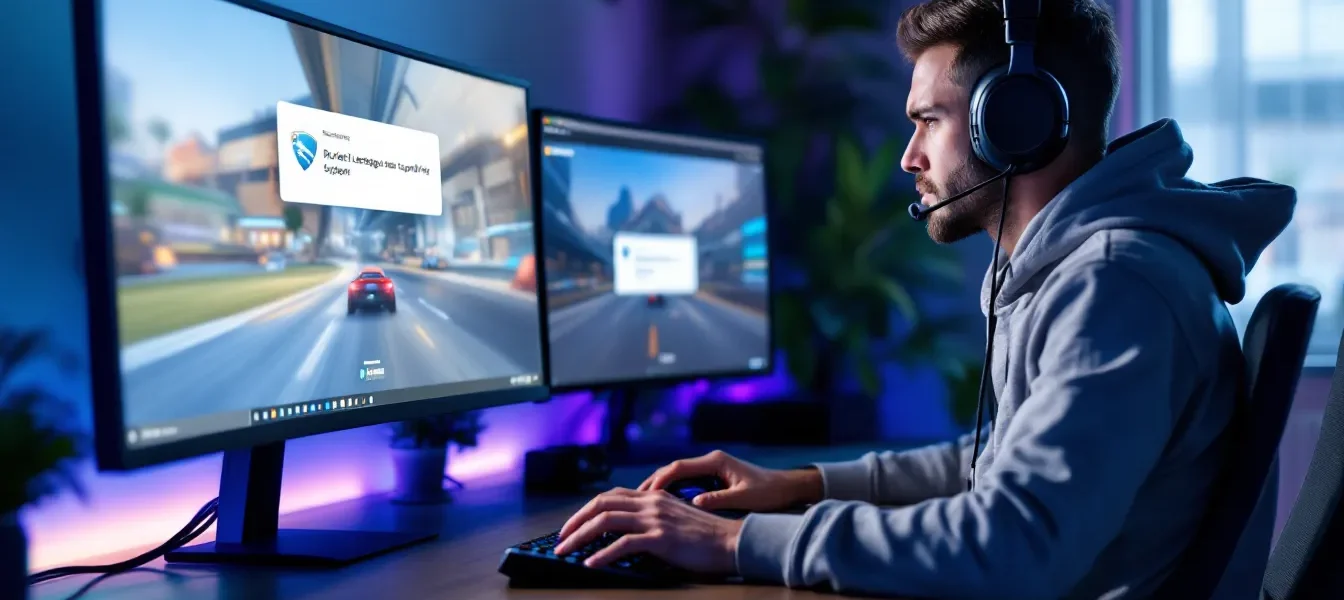
Nothing kills your momentum faster than booting up Rocket League for a ranked grind session, only to be slapped with the dreaded “This Feature Is Temporarily Disabled” message. Whether you’re trying to queue for competitive, trade that shiny Titanium White Octane, or hop into a tournament with your squad, seeing this error can be frustrating, especially when you’re not sure if it’s on your end or Psyonix’s servers.
This guide breaks down exactly what this error means, why it happens, which features get hit the hardest, and how to troubleshoot it effectively across all platforms. We’ll cover server-side issues, client-side fixes, and when you should escalate to support. Let’s get you back on the pitch.
Key Takeaways
- The “This Feature Is Temporarily Disabled” error in Rocket League is an intentional server-side restriction targeting specific features like ranked play or trading, not a personal ban or client bug.
- Check the official Rocket League Status Page and community channels like r/RocketLeague before troubleshooting—most feature disables are known outages that require only waiting for Psyonix to fix server-side issues.
- Client-side fixes including restarting your game, verifying internet connection, clearing cache files, and updating your system can resolve account-specific feature restrictions.
- Psyonix temporarily disables features to prevent exploits, conduct maintenance, or address security threats, with competitive matchmaking and trading being the most commonly affected systems.
- Enable auto-updates, use strong passwords with two-factor authentication, and maintain current platform firmware to minimize preventable feature disable issues and protect your account from restrictions.
- Contact Psyonix Support only if the error persists beyond 24 hours, is isolated to your account, or you’ve exhausted all troubleshooting steps—avoid submitting tickets during known outages to prevent queue congestion.
What Does ‘This Feature Is Temporarily Disabled’ Mean in Rocket League?
The “This Feature Is Temporarily Disabled” error is Psyonix’s way of shutting down specific game features without taking the entire game offline. It’s not a ban and it’s not a bug on your machine, it’s an intentional server-side restriction.
When this message appears, it means Rocket League’s backend has flagged a particular feature (like trading, ranked play, or tournaments) as unavailable. The game client receives this status from the server, so restarting your console or PC usually won’t fix it. You’re essentially locked out of that specific mode or function until Psyonix flips the switch back on.
This is different from connection errors like “Unable to contact Rocket League servers” or “Matchmaking disabled due to update.” Those indicate broader connectivity or patch issues. The temporary disable message is surgical, it targets one feature while leaving the rest of the game playable.
Common Features Affected by Temporary Disabling
Competitive Matchmaking and Ranked Play
Competitive playlists are the most commonly disabled feature, especially during patch rollouts or when Psyonix detects rank exploit abuse. When ranked is disabled, you’ll still see the playlist menu, but selecting it triggers the error.
This usually happens during Season transitions or when a game-breaking bug surfaces mid-season. For example, if players discover a way to manipulate MMR (Matchmaking Rating) or dodge matches without penalty, Psyonix will pull ranked offline while deploying a hotfix. Casual and Private matches typically remain functional.
Trading and Item Exchange
Trading gets disabled more frequently than most players realize. Psyonix shuts down the trading system whenever there’s suspicious activity, item duplication exploits, or during major updates to the item shop and Blueprint system.
If you’re trying to swap items with another player and see the error, check Psyonix’s official channels before assuming it’s a local issue. Trading outages can last anywhere from 30 minutes to several hours, depending on the severity of the backend issue. Cross-platform trades through Epic Games accounts are especially vulnerable during these windows.
Party and Friends System
The Party system, which lets you team up with friends across platforms, can be disabled when Psyonix is troubleshooting matchmaking algorithms or Epic Games integration. This one’s particularly annoying because you can still launch the game and see your friends online, but you can’t invite them or accept invites.
Cross-platform parties (mixing Steam, Epic, PlayStation, Xbox, and Switch players) rely on Epic’s social backend, so issues on their end can ripple into Rocket League. When this happens, many players dealing with gaming social features across multiple titles report similar problems.
Tournament Mode
Tournament Mode is periodically disabled for maintenance or when Psyonix adjusts tournament rewards and schedules. Since tournaments run on fixed timers and involve in-game currency (Tournament Credits), any backend hiccup can force Psyonix to shut it down temporarily.
If you’re a tournament grinder, you’ve probably seen this during the first few hours after a major update. Psyonix often disables tournaments preemptively to avoid issues with new season rewards or changes to the bracket system.
Why Does Rocket League Temporarily Disable Features?
Server Maintenance and Updates
Psyonix schedules server maintenance regularly, especially after patch drops or during the start of a new season. These maintenance windows are usually announced in advance, but emergency maintenance can pop up without warning if something breaks post-update.
During maintenance, Psyonix may disable high-traffic features like ranked or trading to reduce server load while they roll out backend changes. This keeps the game playable for casual modes while protecting the integrity of competitive stats and item databases.
Bug Fixes and Exploit Prevention
When a game-breaking bug or exploit surfaces, Psyonix acts fast. Exploit prevention is the most common reason for sudden feature disables, especially in ranked and trading.
For example, if players discover a way to crash lobbies, manipulate rank gains, or duplicate rare items, Psyonix will shut down the affected feature within hours. They’ll push a hotfix, test it internally, and re-enable the feature once the exploit is patched. This reactive approach prevents widespread abuse but can frustrate players who weren’t aware of the issue.
Account Security Issues
If Psyonix detects suspicious login activity, account takeovers, or credential stuffing attacks, they may temporarily disable account-related features like trading or party invites for affected users. This is a protective measure to prevent stolen accounts from being used to funnel items or Credits to other accounts.
In rare cases, widespread security concerns (like a wave of phishing attacks) can trigger a blanket disable of trading across the entire playerbase until Psyonix verifies the threat is contained.
How to Check If the Issue Is Server-Side or Client-Side
Official Rocket League Status Channels
Before diving into troubleshooting, confirm whether the issue is on Psyonix’s end. Start with the Rocket League Status Page at status.rocketleague.com. This dashboard shows real-time server health for all platforms and game features.
If ranked, trading, or tournaments show a red or yellow indicator, the problem is server-side and there’s nothing you can do but wait. Psyonix updates this page within minutes of a known outage, so it’s your fastest source of truth.
You should also check the official Rocket League Twitter/X account (@RocketLeague). Psyonix posts updates about planned maintenance, emergency fixes, and feature disables here. Community managers often reply to player reports during outages, giving ETAs when possible.
Community Reports and Social Media
Reddit (r/RocketLeague) and Discord communities are gold mines for real-time reports. If dozens of players are posting about the same error within minutes, it’s almost certainly a server-side issue.
Sort by “New” on r/RocketLeague and scan for posts matching your error. Players often share workarounds or confirm which regions are affected. If you’re seeing reports from multiple platforms (PC, PlayStation, Xbox, Switch), that’s a clear sign it’s not a local problem.
Third-party sites like Down Detector aggregate user reports and visualize outage spikes. While not official, a sudden surge in reports correlates strongly with actual server issues. Many players tracking competitive gaming disruptions use these tools to differentiate between local and global problems.
Step-by-Step Troubleshooting Solutions
Restart Your Game and Platform
Start simple. Close Rocket League completely, not just suspend or minimize it. On consoles, use the dashboard to force-quit the application. On PC, end the task via Task Manager (Ctrl+Shift+Esc) or Activity Monitor (macOS).
Next, restart your platform. A full reboot clears cached session data and forces your system to establish a fresh connection to Rocket League’s servers. This can resolve temporary authentication issues or outdated feature flags that your client is holding onto.
After rebooting, launch Rocket League and check if the error persists. If it does, move to the next step.
Verify Your Internet Connection
A stable connection is critical for accessing online features. Run a quick connection test:
- PC: Open Command Prompt or Terminal and ping Rocket League’s servers:
ping psyonix.com. Look for consistent response times under 100ms and zero packet loss. - Consoles: Use the built-in network test in your system settings. PlayStation and Xbox both provide detailed connection diagnostics.
If your connection is unstable, try:
- Switching from Wi-Fi to Ethernet
- Restarting your router and modem (unplug for 30 seconds)
- Closing bandwidth-heavy applications (streaming, downloads)
Sometimes ISP routing issues can cause authentication problems with Epic Games servers, which control feature access. If other Epic games (Fortnite, Fall Guys) are also acting up, contact your ISP.
Check for Game and System Updates
Outdated game clients often get feature restrictions. Check for updates immediately:
- Steam: Right-click Rocket League in your library → Properties → Updates (should auto-update by default)
- Epic Games Launcher: Updates usually auto-install: manually verify by clicking the three dots next to Rocket League → Manage → Verify
- Consoles: Check for game updates in your system’s game management menu
Also verify your system firmware is current. PlayStation 5, Xbox Series X/S, and Switch all require the latest OS version to maintain compatibility with Rocket League’s backend services.
Clear Cache and Verify Game Files
Corrupted cache files can cause authentication errors and prevent feature access. Here’s how to clear them:
PC (Steam):
- Right-click Rocket League → Properties → Installed Files → Verify integrity of game files
- Steam will scan and replace corrupted files automatically
PC (Epic Games):
- Open Epic Games Launcher → Library
- Click the three dots next to Rocket League → Manage → Verify
Consoles:
- PlayStation: Settings → Storage → System Storage → Saved Data → Delete Rocket League cache
- Xbox: Dashboard → My games & apps → Rocket League → Manage game → Saved data → Clear local saved data (cloud saves remain intact)
- Switch: System Settings → Data Management → Delete Rocket League’s cache
After clearing cache, restart the game and test the affected feature.
Review Account Standing and Bans
If you’ve received any recent bans, even temporary ones for chat violations or unsportsmanlike conduct, some features may remain restricted. Check your email associated with your Rocket League account for ban notifications from Psyonix.
Log into the Rocket League Support Portal and review your account status. If you see an active restriction, note the expiration date. Trading bans, for instance, can last from 72 hours to permanent, depending on the violation.
Players who frequently adjust their competitive game settings and share accounts may inadvertently trigger security flags. If you’ve recently logged in from a new location or device, Psyonix may have temporarily restricted features pending verification.
Platform-Specific Fixes for the Temporary Disabled Error
PC (Steam and Epic Games)
Steam players should verify they’re not running outdated DirectX or Visual C++ redistributables. Rocket League requires specific runtime versions, and missing these can cause backend authentication failures.
- Open Steam → Library → Tools
- Install DirectX Runtime and Microsoft Visual C++ Redistributable packages
- Restart your PC
For Epic Games Launcher users, corrupted launcher cache is a common culprit:
- Exit Epic Games Launcher completely
- Navigate to
C:Users[YourName]AppDataLocalEpicGamesLauncherSavedwebcache - Delete the entire
webcachefolder - Restart the launcher and let it rebuild the cache
Firewall and antivirus software can also block feature authentication. Add exceptions for:
RocketLeague.exe- Epic Games Launcher
- Steam client
Temporarily disable your firewall to test if it’s blocking connection to Psyonix’s servers.
PlayStation 4 and PlayStation 5
PlayStation Network (PSN) issues often masquerade as Rocket League errors. Check PSN Status to confirm PlayStation’s online services are operational.
If PSN is fine, try these steps:
- Rebuild PS database (safe mode option that fixes corrupted system data):
- Turn off PlayStation completely
- Hold power button until you hear two beeps (about 7 seconds)
- Connect controller via USB → Select “Rebuild Database”
- Clear local game data: Settings → Storage → System Storage → Saved Data → Rocket League → Delete
- Test connection: Settings → Network → Test Internet Connection
PS5-specific: If you’re running Rocket League’s PS5 native version, verify you haven’t accidentally installed both PS4 and PS5 versions. This can cause authentication conflicts. Delete the PS4 version if both are present.
Xbox One and Xbox Series X/S
Xbox Live connectivity is often the culprit. Press the Xbox button → Profile & system → Settings → General → Network settings → Test network connection.
If you see NAT type “Strict” or “Moderate,” this can block party and matchmaking features:
- Enable UPnP on your router (check router manual for steps)
- Forward ports for Xbox Live: TCP/UDP 3074, TCP 53, UDP 88, UDP 500, UDP 3544, UDP 4500
- Restart your console after making router changes
Clear persistent storage (Xbox’s version of cache clearing):
- Hold Xbox button → Full shutdown (not rest mode)
- Unplug power cable for 30 seconds
- Plug back in and power on
Series X/S note: Rocket League on Series consoles uses a separate server pool for Quick Resume. If you’re using Quick Resume, fully quit Rocket League and relaunch it. Quick Resumed sessions can hold stale authentication tokens.
Nintendo Switch
The Switch version has unique connectivity quirks due to Nintendo’s online infrastructure. Start by testing your NAT type:
- System Settings → Internet → Test Connection
- NAT type should show “B” or “A” (“C” or “D” will cause issues)
If your NAT type is restrictive:
- Restart your router
- Assign your Switch a static IP and place it in your router’s DMZ (less secure but effective for testing)
- Update router firmware
Switch-specific cache clear:
- System Settings → Data Management → Manage Software
- Select Rocket League → Check for Corrupt Data
- If found, delete and redownload the game
Docked vs. Handheld: If you’re having issues while docked, try undocking and connecting via mobile hotspot. This helps determine if the problem is your home network or the Switch itself.
When to Contact Psyonix Support
You should escalate to Psyonix Support when:
- The error persists for more than 24 hours and isn’t listed on the status page
- Only your account is affected (friends can access the feature, you can’t)
- You’ve completed all troubleshooting steps with no improvement
- You suspect an incorrect ban or account restriction
Head to support.rocketleague.com and submit a ticket. Include:
- Your platform (PC/Steam/Epic, PlayStation, Xbox, Switch)
- Your Epic Games account email
- Screenshots of the error message
- Steps you’ve already tried
- Your approximate location (region/country)
Response times average 2-5 business days, but can spike during major updates or seasonal events. If your issue is account security-related (unauthorized purchases, stolen items, suspicious logins), select the “Account Security” category for faster escalation.
Avoid generic support requests. Psyonix gets flooded with reports during outages. If the status page confirms a known issue, submitting a ticket won’t speed up the fix, you’ll just clog the queue. Save support tickets for account-specific problems that require backend investigation.
Preventing Future Feature Disable Issues
While you can’t prevent server-side outages, you can minimize client-side issues:
Enable auto-updates: Configure your platform to automatically download and install Rocket League updates. Outdated clients are the #1 cause of preventable feature restrictions.
Maintain account security: Use a strong, unique password for your Epic Games account and enable two-factor authentication (2FA). Compromised accounts often get features disabled by Psyonix as a protective measure.
Monitor official channels: Follow @RocketLeague on Twitter and bookmark the status page. Psyonix announces planned maintenance days in advance, so you can schedule your ranked grind accordingly.
Keep platform firmware current: PlayStation, Xbox, Switch, and Windows updates all affect online game functionality. Install system updates promptly to avoid compatibility issues.
Avoid third-party tools: Mods, trainers, and unofficial apps can trigger anti-cheat flags or account restrictions. Stick to official Psyonix-supported tools like Bakkesmod (PC training mod that’s explicitly allowed).
Test your network regularly: If you’re on Wi-Fi, consider upgrading to Ethernet or a mesh network system. Consistent connectivity prevents mid-session authentication drops that can lock you out of features.
Don’t share accounts: Account sharing violates Terms of Service and can trigger security lockdowns. If you must let someone play on your account (local co-op, family sharing), avoid logging in from drastically different geographic locations within short timeframes.
Conclusion
The “This Feature Is Temporarily Disabled” error is frustrating, but it’s usually a short-lived server-side issue. Psyonix disables specific features to protect game integrity during maintenance, exploit fixes, or security concerns, not to inconvenience players.
When you see this error, always check the official status page and community channels first. If it’s a known outage, you’ll save hours of unnecessary troubleshooting. If the issue is isolated to your account, the step-by-step fixes in this guide, from cache clearing to platform-specific solutions, will resolve most client-side problems.
Keep your game updated, maintain strong account security, and stay connected to official Psyonix channels. With those habits, you’ll minimize downtime and get back to your ranked climb faster when issues do pop up.